Quick start: Install NGUMU, open its alarm-clock icon, choose a focus mode, apply your website filters, and press Start. This illustrated walkthrough follows the extension screens supplied by the NGUMU team.
This guide is for your first real session, not a feature comparison. Each screenshot shows what to look for and the next action to take. Screenshots capture one version of the extension; labels and available options can differ by browser or release. The numbers in the timer and analytics screenshots are examples, not promises about your results.
Important: The NGUMU website timer helps you time your work, but cannot block other browser tabs. Install the browser extension for actual website blocking. Website settings and extension settings are separate; do not assume your lists or session history automatically sync between them.
Step 1: Install NGUMU from your browser's store
Open the store link in the browser where you want to focus:
- Chrome: Install NGUMU from the Chrome Web Store.
- Edge: Get NGUMU from Edge Add-ons.
- Brave: Use the Chrome Web Store in Brave.
- Firefox: Add NGUMU from Firefox Add-ons.
- Opera: coming soon.

The Chrome screenshot shows Add to Chrome beside the NGUMU name. Other stores may use Get or Add to Firefox. Select that button, review the permissions shown by your browser, and confirm installation only if you are comfortable with them. A blocker needs permission to work on the sites it protects; follow the actual browser prompt rather than looking for an identical dialog.
Step 2: Pin the alarm-clock icon and open NGUMU
Open your browser's Extensions menu. If your browser offers pinning, pin NGUMU to make its alarm-clock icon easy to reach. Then click the icon.
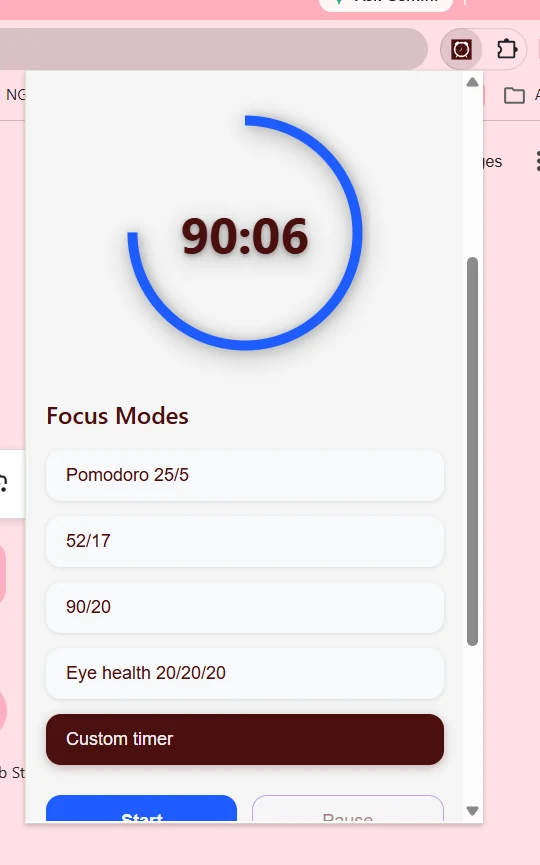
You should see the countdown and Focus Modes. The popup in this screenshot is narrow and scrollable: scroll inside it to reach controls below the modes. Your browser may also open the extension in a larger window, like the next screenshot.
If the icon is missing, look in the Extensions menu and check whether NGUMU is enabled. Make sure you installed it in this browser and profile, not a different one.
Step 3: Choose a focus mode
Pick one task before starting: draft a page, revise a topic, or finish a piece of admin. Then select the mode that fits the task.
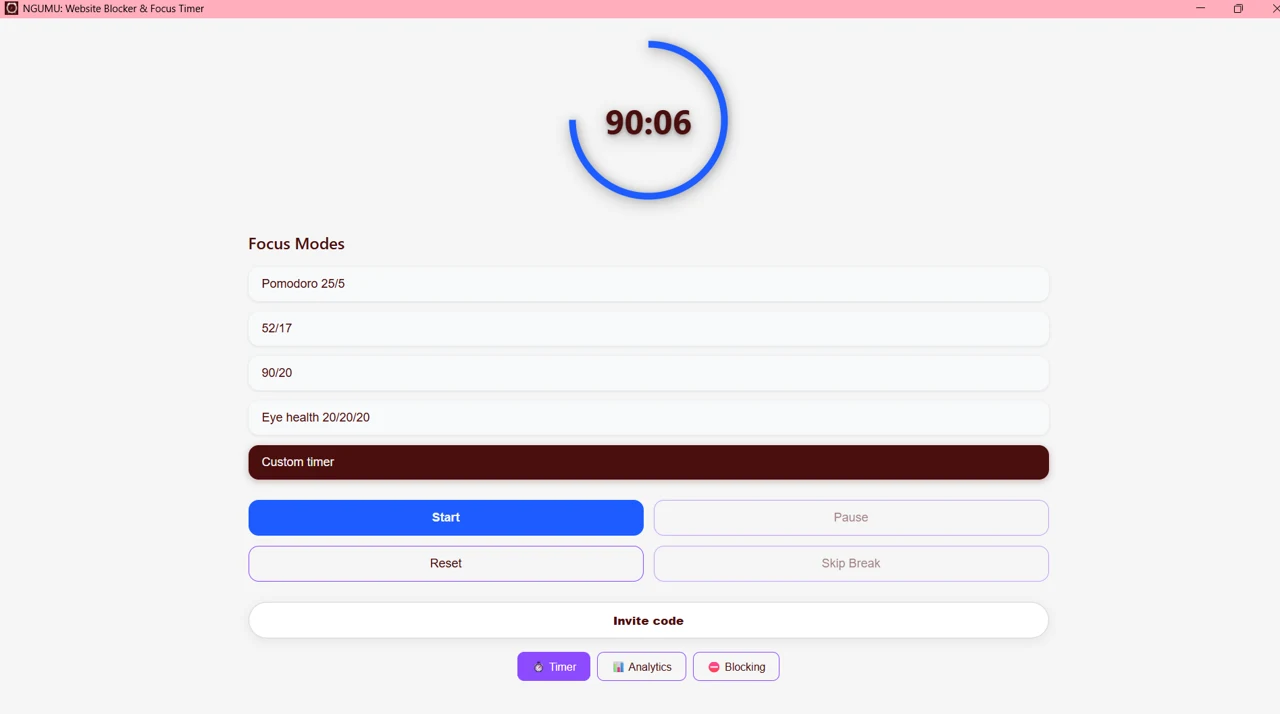
| Mode shown | Focus and rest pattern | A practical starting point |
|---|---|---|
| Pomodoro 25/5 | 25 minutes focus, 5 minutes break | A first session or short study task |
| 52/17 | 52 minutes focus, 17 minutes break | A longer work block |
| 90/20 | 90 minutes focus, 20 minutes break | A task needing uninterrupted time |
| Eye health 20/20/20 | Every 20 minutes, look about 20 feet away for 20 seconds | Regular eye-rest reminders |
| Custom timer | Your own available timer settings | A routine you already know works for you |
For a first session, try Pomodoro 25/5. Do not copy the 90:06 countdown shown in the screenshot: it is an example screen, not a required setting. Before pressing Start, set up your filters.
Step 4: Add websites and apply your filters
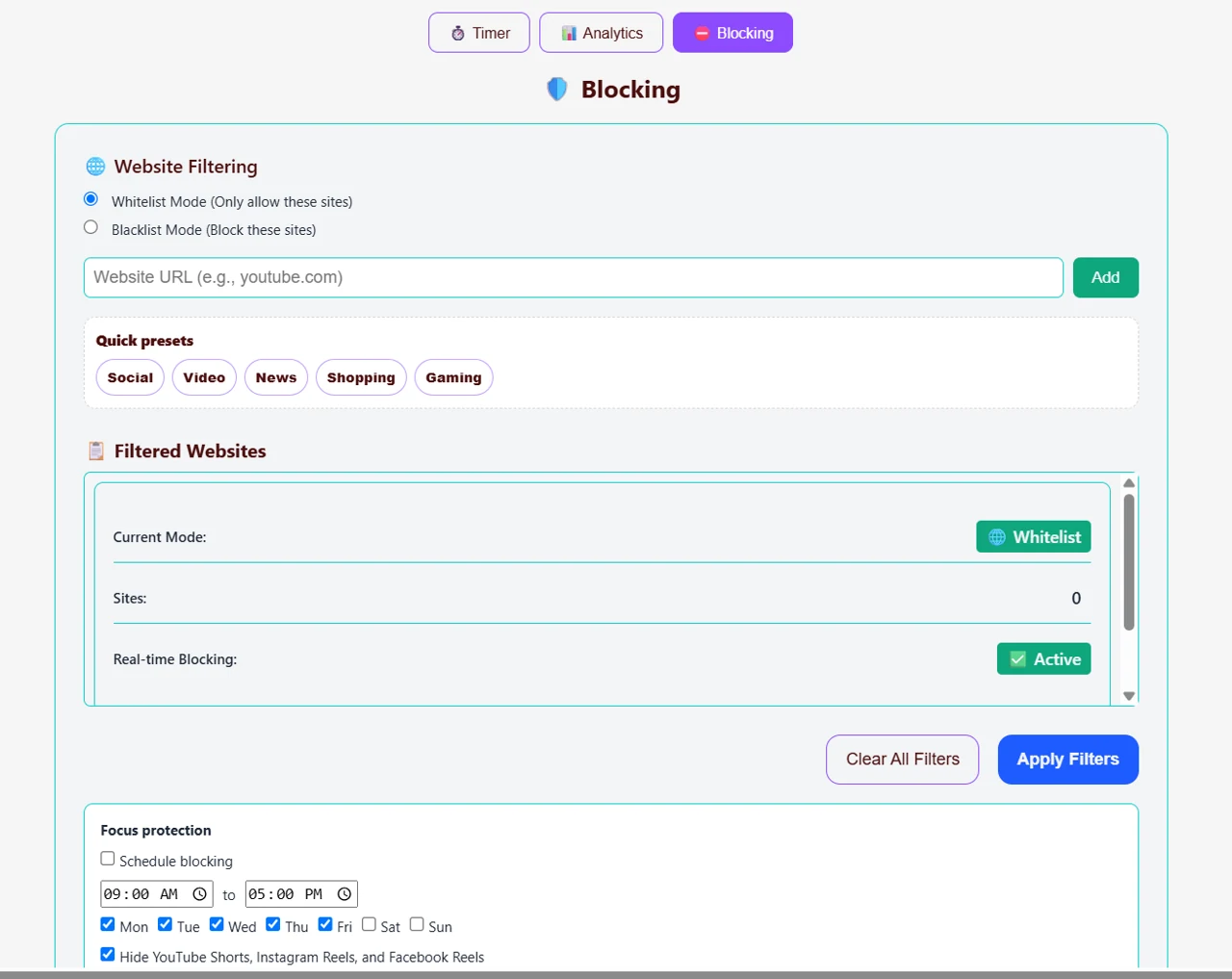
Open Blocking. The screenshot calls the two filtering options Whitelist Mode and Blacklist Mode; these are also commonly called an allowlist and a blocklist.
Start with Blacklist Mode
- Select Blacklist Mode (Block these sites).
- Enter a distracting domain, such as youtube.com, in Website URL.
- Press Add.
- Repeat for the other sites you want to avoid, or choose a relevant Quick preset: Social, Video, News, Shopping or Gaming.
- Review Filtered Websites, then press Apply Filters.
Start with a short list you can check. A video site might be a distraction during one task and essential during another, so keep the task in mind when choosing presets.
Use Whitelist Mode carefully
Whitelist Mode (Only allow these sites) is stricter. Add the sites your task needs before applying it, including research or sign-in pages you depend on. An empty or incomplete allowlist can keep needed pages from opening. Check the selected mode and list before starting your session.
Step 5: Adjust optional focus protection
Below the website list, the supplied extension screenshots show Focus protection. Use only the options available in your installed version.
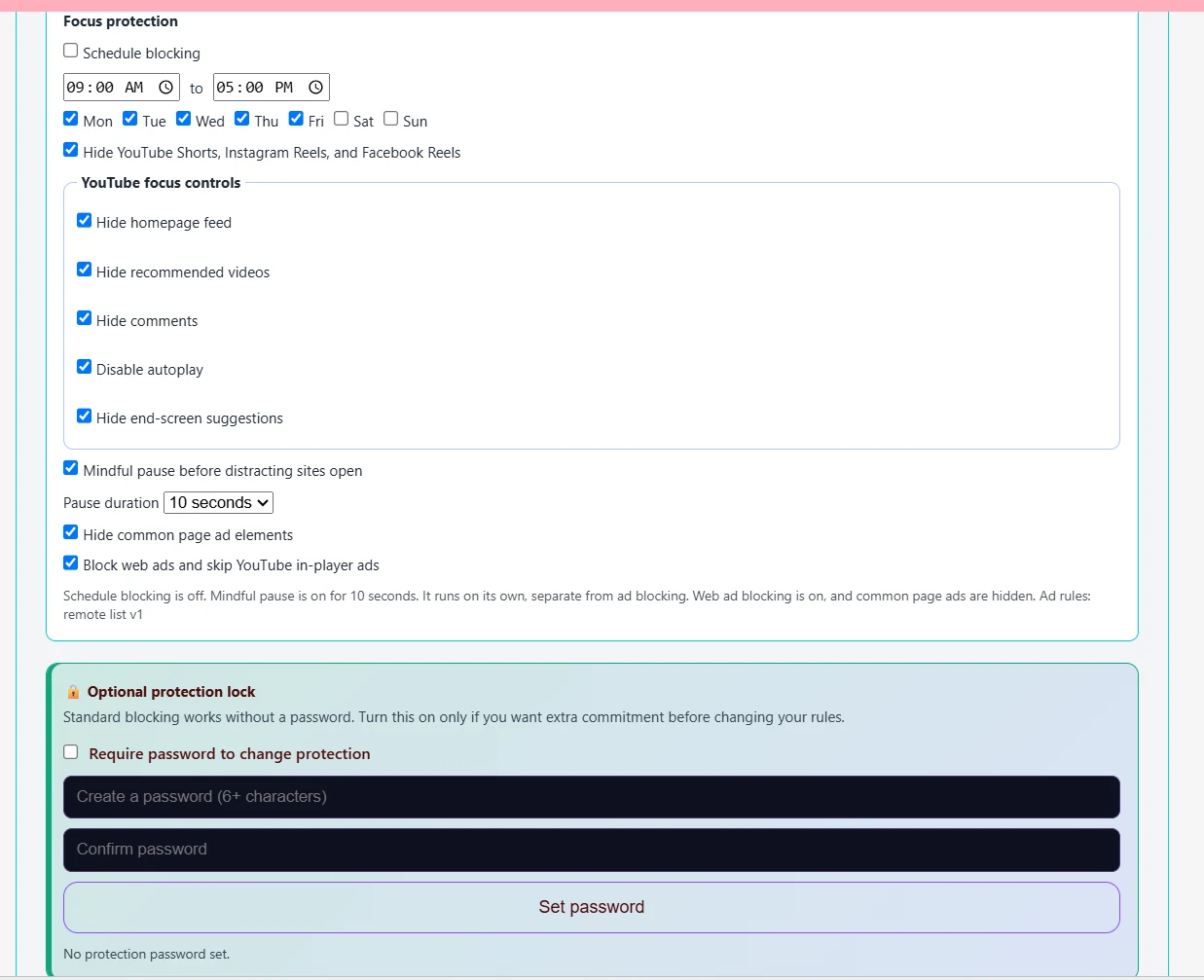
- Schedule blocking: enable the checkbox, choose start and end times, and select the days you want. Merely displaying times does not enable it—the screenshot has the schedule checkbox unchecked.
- Short-form feeds: the shown option hides YouTube Shorts, Instagram Reels and Facebook Reels.
- YouTube focus controls: choose whether to hide the homepage feed, recommendations, comments and end-screen suggestions, or disable autoplay.
- Mindful pause: enable a pause before distracting sites open and select its duration. The screenshot notes this pause works separately from ad blocking.
- Page ads: the shown version has controls for common page ads and YouTube in-player ads. These depend on website behavior and are not a guarantee that every ad will disappear.
Optional protection lock
The screenshot says standard blocking works without a password. If you want extra commitment before changing your protection, select Require password to change protection, enter and confirm a password, then choose Set password. The screen asks for at least six characters. Keep it somewhere safe; this guide does not promise a recovery method or that the lock prevents uninstalling the extension.
If these options are absent, check your installed version and store listing. Do not assume every control pictured is included in every browser or plan.
Step 6: Start your session and check blocking
Return to Timer, confirm your mode, and press Start. Work on the task you chose. Pause interrupts the timer; Reset returns it to its starting state. Avoid resetting just to escape a difficult moment—first decide whether your task or timing needs to change.
To check the setup, try opening one site from your blocklist while protection is active. The supplied screenshot shows the result you are looking for:
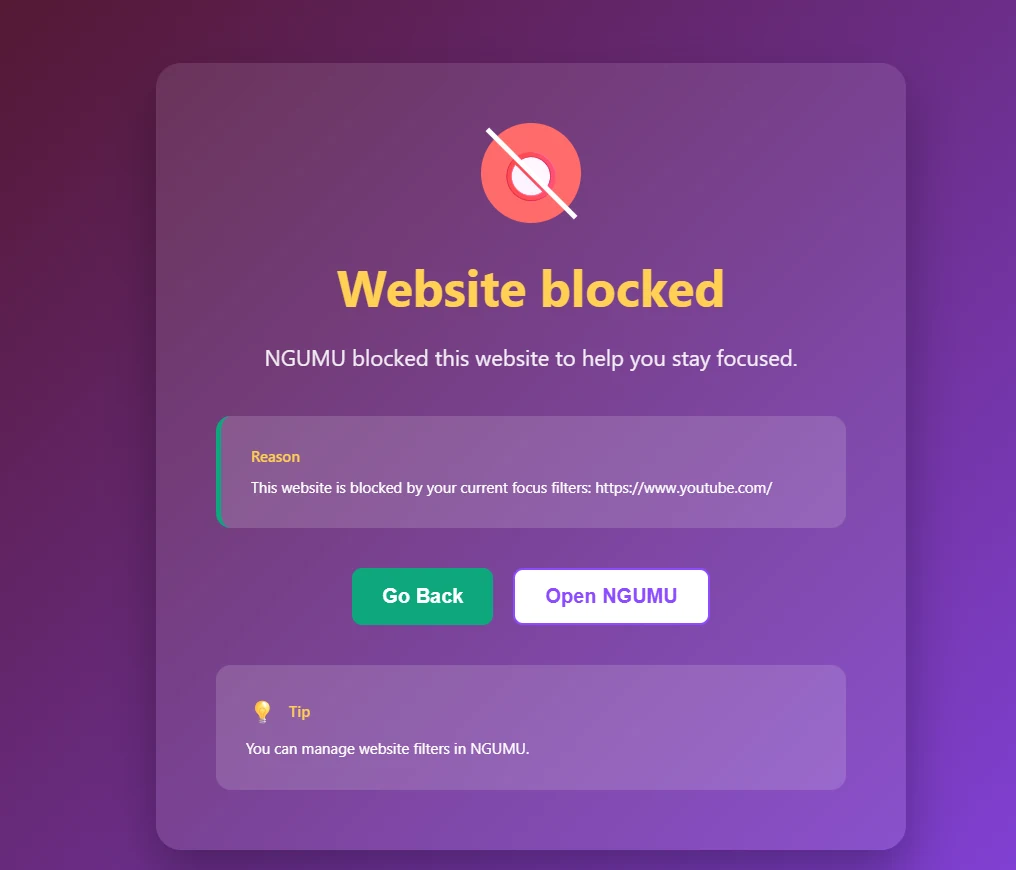
The Website blocked page explains which filter caused the block. Choose Go Back to return to your work, or Open NGUMU to review the rules if you blocked a site you actually need. Check your current filtering mode, saved list and protection state instead of assuming every access problem comes from the timer.
Step 7: Take the break
When your focus period ends, use the break for a real change of pace: stand up, stretch, get water or look away from the screen.
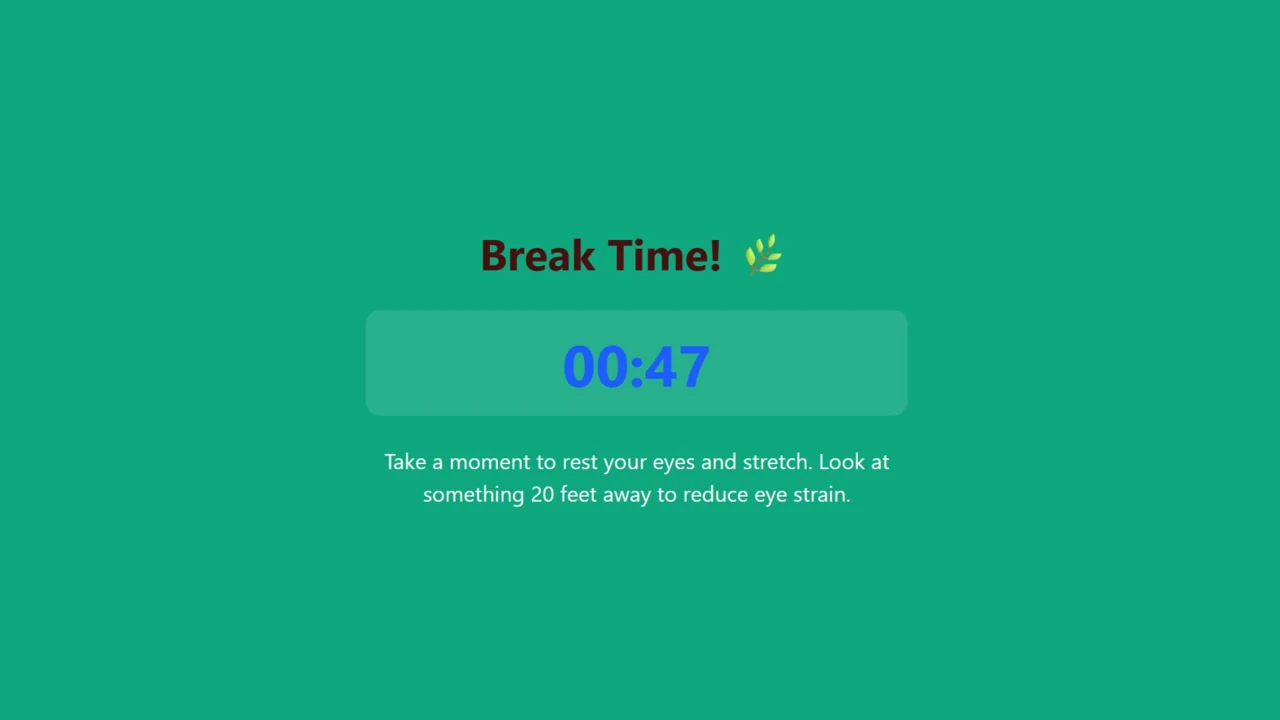
The screenshot shows Break Time! and the remaining rest time. Let the countdown finish if you can. The Timer screen also shows Skip Break; use the controls available in your version deliberately rather than treating skipped breaks as the default.
For eye comfort, looking into the distance is a reminder, not medical treatment. The American Optometric Association's computer vision guidance discusses regular breaks and the 20-20-20 rule. Seek professional advice for persistent symptoms.
Step 8: Review your completed sessions
Open Analytics after you have completed sessions.
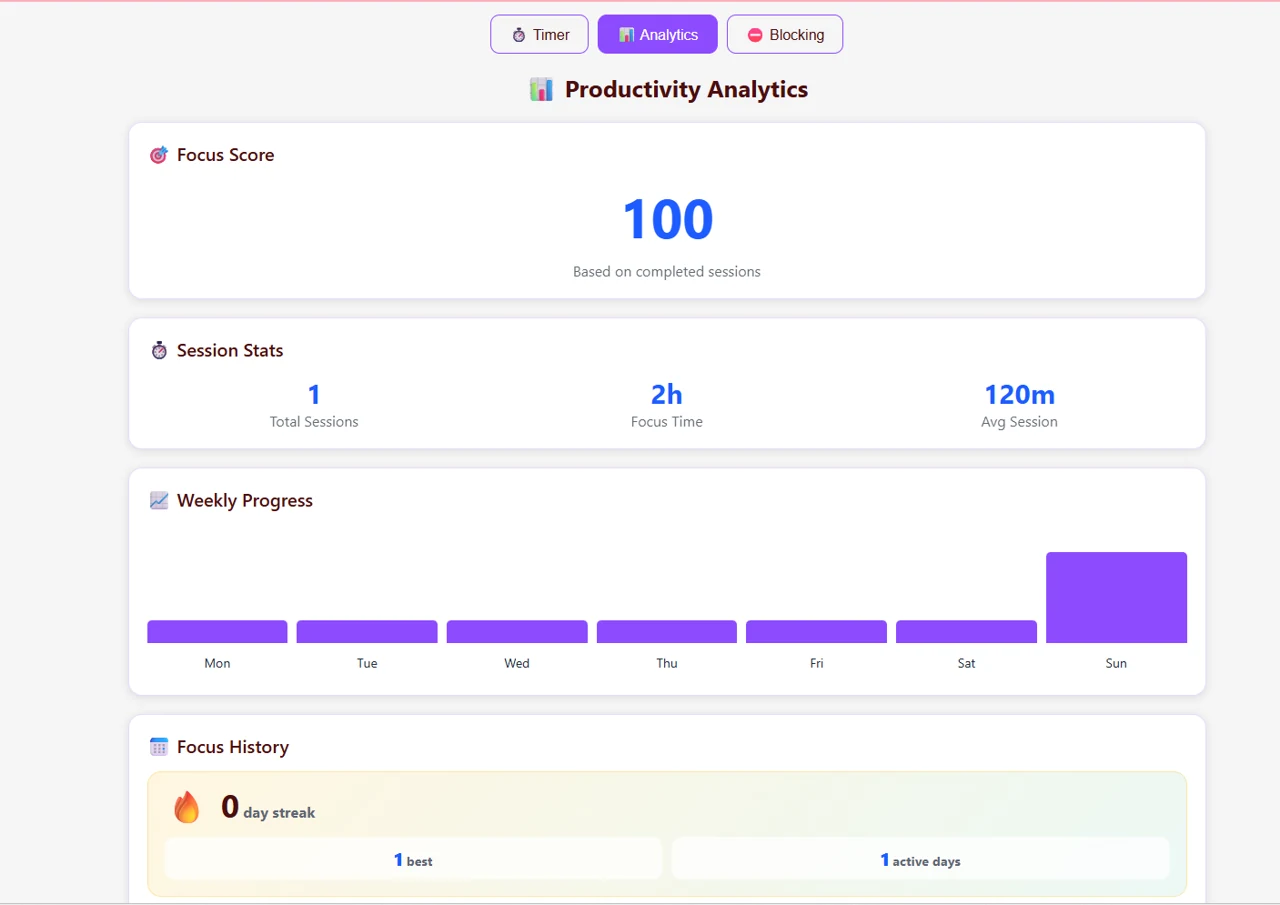
The supplied screen includes Focus Score, Total Sessions, Focus Time, Avg Session, Weekly Progress and Focus History. Its score and session counts are demonstration data from that screenshot; your own values depend on your activity. A focus score is an app indicator, not a clinical assessment or a guarantee of productivity.
Use the history to ask practical questions: Did I finish the session? Was the block too long? Which sites interrupted the task? For your next session, change one thing rather than every setting at once.
Troubleshooting your first session
A distracting site still opens
Check that the extension is enabled in the browser and profile you are using. Review the actual permissions, selected mode, domain and Apply Filters action. If using scheduled protection, check the selected days and times. Refresh or reopen the site after applying changes. Private browsing may need separate browser permission; follow your browser's own controls.
A work site is blocked
Read the reason on the blocked page. Open NGUMU and check whether a preset added the domain or whether your allowlist is missing it. Adjust the appropriate list and apply the filters again. If you enabled a protection password, follow the extension's password prompt.
The screenshot looks different from my screen
Browser stores and NGUMU releases can change labels and layout. Use the same sequence—install, open, choose a mode, apply filters, start, rest, review—and consult your browser's current store listing for available features.
Try one complete cycle today
Choose one task, block your most tempting sites, and complete one Pomodoro cycle with its break. Then look at Analytics and decide whether to repeat the same setup.
Install using the Chrome, Edge, Brave or Firefox link. For broader routines, see the complete NGUMU guide or how to reduce screen time without losing productivity.